Migrating data from Amazon S3 to Autodesk Construction Cloud (ACC) is about transferring your project files securely and efficiently to enhance collaboration, project management, and data storage capabilities.
This guide will walk you through the migration process, highlighting the steps, prerequisites, and best practices.
What Does “Amazon S3 to Autodesk Construction Cloud Migration” Look Like?
Amazon S3 is a versatile object storage service widely used for scalable storage solutions, whereas Autodesk Construction Cloud focuses on managing construction workflows and project collaboration. Migrating from Amazon S3 to ACC is a step of transferring your project files, folders, and data structures to enable construction-specific use cases.
Why are Organizations Migrating from Amazon S3 to ACC
Here are some benefits that attracts companies to switch their projects to ACC
- Streamlined Project Management: Consolidating construction project data into a centralized platform like ACC can potentially improve collaboration and provide more consistent access.
- Functional Integrated Toolsets: Platforms such as ACC often include integrated tools that may enhance document control, issue tracking, and project analytics capabilities, depending on the specific needs of the project.
- Improved Data Accessibility: Here, all your team members can also access the most current project files.
Prerequisites: What Should You Know Before Starting the Migration Process?
Access Credentials
- You have to verify access credentials for both Amazon S3 and Autodesk Construction Cloud.
Required Permissions
- Confirm that you have administrative permissions for Amazon S3 buckets and ACC projects.
Choose the Right Migration Tool
- Why Cloudsfer?
Cloudsfer offers a secure and user-friendly platform for data migration across Amazon S3 and ACC. It has an intuitive interface, advanced security, and filtering options that guarantee smooth and efficient migration.
Step-by-step Process
Steps 1: Assess Data Volume in Amazon S3
- Use the AWS Management Console to View Storage Metrics:
- Navigate to the Amazon S3 console.
- On the Buckets page, enable S3 Storage Lens, which aggregates storage metrics and provides an overview of your S3 usage.
- Metrics such as total storage size, object count, and bucket-level usage can help identify the data volume. Metrics are available under the Account Snapshot for quick insights.
See more in AWS Documentation
Step 2: Configure Autodesk Construction Cloud
- Set Up Project Structure
- Create folders or destinations in ACC that correspond to your Amazon S3 structure.
- Check Storage Availability
- Ensure there is enough space in ACC to accommodate the migrated data.
- Assign Permissions
- Define access permissions for team members in ACC
Step 3: Set Up Cloudsfer as Your Migration Tool
- Connect Amazon S3
-
- Log in to Cloudsfer and select ‘Amazon S3 as ‘Source’.
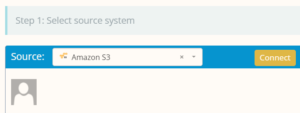
- Connect Autodesk Construction Cloud
- Grant Cloudsfer access to ACC by selecting it as a ‘Target’ in the interface.
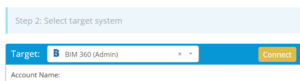
- Select Data to Migrate
- Use Cloudsfer’s interface to select the files and folders you want to transfer.
- Move only the file types you choose
- You can apply filters such as file types, sizes, or date ranges to migrate only relevant data.
Step 4: Start the Migration
- Initiate the Migration Process
- Start the migration using Cloudsfer’s dashboard, which simplifies the process into a few clicks.
- Monitor Progress
- You’ll be able to keep all your updates about migration using Cloudsfer’s progress bar and detailed logs.
- Handle Errors
- If any issues arise, Cloudsfer will red flag errors for your attention.
Step 5: Verify Migration
- Validate Data Integrity
- After the migration is complete, log in to ACC and verify that all files and folders have been transferred by viewing the reports section.
- Test Functionality
- Open and review files in ACC to confirm they are functioning correctly.
- Check Permissions
- If any files are missing or incomplete, Cloudsfer’s support team is available 24/7 to assist.